Monday, October 31, 2022

DRM Contracts

 Digital Rights Management (DRM) prevents the unauthorized use and download of restricted assets.

Create a new DRM contract

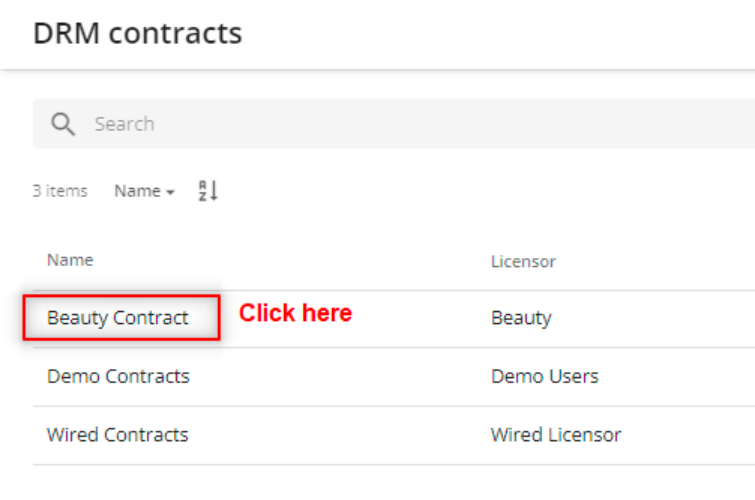
A digital rights management (DRM) contract contains multiple rights profiles and related files, such as contract files. You can manage your DRM contracts from the DRM contracts page.

To create a contract:

 On the menu bar, click DRM and select DRM contracts.


  • Click save

Link existing assets to an existing DRM rights profile


Link existing assets to an existing DRM rights profile


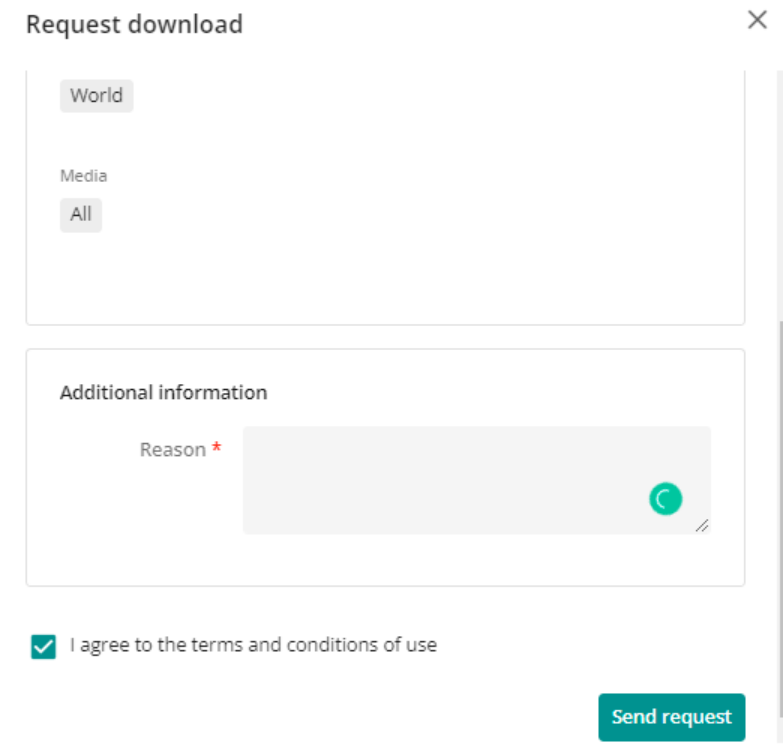
  • Click request authorization


Friday, September 30, 2022

Media Processing Set

 Create a media processing set

ØOn the menu bar, click Manage .

ØOn the Manage page, click Media processing.

ØThe Media processing page lists all the defined media processing sets. If you click on a media processing set in the left pane, the flows it contains are displayed in the right pane.

ØTo create a new media processing set, on the Media processing page, click New set.


ØTo create a new media processing set, on the Media processing page, click New set.

ØIf you want the processing set to be applied by default and run on each processing job, turn the Auto-run switch to On.


Create a media processing flow

ØOn the media processing set page, click Add flow.

In the Flow settings dialog box, define the following parameters:


Priority: this is the priority handling of processing jobs defined on the flow level. Flows are handled by the processing agent with the following priorities:

ØLow

ØNormal

ØHigh

ØBackground

Name: this is the name used for the media processing flow. We recommend that you use a label that characterizes the file type cluster.

File types: these are the file extensions that go through the media processing flow.

Next we need to know about Processing flow to proceed further

Processing flow detail

 Processing flow detail

The Processing flow detail page provides a visual representation of the tasks contained within a media processing flow and provides the ability to select, edit, clone, move, or delete a task. The following example shows the media processing flow for Images.

When you select a task, the right pane displays the task details. Task details consist of the task name and parameters.

Interact with the media processing flow

ØOn the menu bar, click Manage .

ØOn the Manage page, click Media processing.

ØIn the left page of the application window, click a media processing set, for example Content.

ØIn the list, click a flow, for example Images.


Do any of the following:

ØTo select a task, click the task.

ØTo edit a task, click Edit .

ØTo delete a task, click Delete . >(This action also deletes its child tasks).

ØTo clone a task, click Clone . > (This action clones the selected task only and does not clone the child tasks).

ØTo move the flow, hold down the left mouse button and move the flow to the desired location.

ØTo zoom in and out on the canvas, use the mouse wheel.

 When you finish your changes, click Save task.

The next step is we need to create a task 

Task Creation in Media processing


Create a task

ØAt the point in the media processing flow where you want to create a task, click +:


ØIn the right pane, select a task type, for example Convert image.


ØGoing to try this


Store outputs

ØStoring outputs enables you to download or display an asset through a rendition link. Storing outputs is optional.

To store outputs:

ØOn the media processing flow page, on the canvas, select a task and, in the right pane, click the Outputs tab.

ØClick the Store output toggle switch to make it active and then click New link.

ØIt show add I already have added so it is showing edit

Intent of the rendition link

ØNone

ØDownload - save the link to your device

ØStreaming - view the link online

ØWhenever you like to see you can find our new task

ØThen save and publish

Let’s test

ØFirst refresh all the assets in the asset detail page


ØLet’s open any of the asset page

ØDownload section

ØPublic link section

ØOnce you download you can see the image in pdf format.

Create a media processing

 When you upload assets into Sitecore Content Hub™, they go through a conversion process that renders them according to predefined configurations. Content Hub lets you configure these data conversions.

The main concepts of media processing are:

Task: a processing flow task defines an asset conversion.

Set: a media processing set contains all the processing flow tasks that affect an asset.

Workflow: a media processing workflow determines how an asset is handled.

Use case:

 When I download the media I would like to add some options to download. Let’s see this are the options are already available with download, how should we add a new one here?


ØMy case I like to add one more rendition that will download the image as PDF

Please click here for go through the demo


Sunday, July 17, 2022

Email Template

Edit an email template


Use case: 

I don’t like to send this email to my user. I would like to add something new here, can I update?

ØOn the menu bar, click Manage .

ØOn the Manage page, click Email templates.

ØNext to the email template you want to modify, click Edit .

ØThe email template detail page displays two tabs:

vInfo

vEmail body

Info

The Info tab contains the email template form fields. The Name and Label fields are not editable. You can edit the following fields:

ØDescription: description of the email template.

ØSubject: subject of email template.

ØVariables: variables included in the email template. Clicking a variable inserts the variable into the beginning of the Subject field.

In the following example, the variables are: DiscussionUrlDiscussionCreatedByDiscussionModifiedBy, and DiscussionMessage.

ØUpdated the subject and triggered the test email

Email body

ØThe Email body tab displays the email template in HTML format with CSS. The Variables section shows the variables that are available for the email template you are modifying and that you can add to the email body.

ØClicking a variable inserts it at your cursor location. In the following example, the DiscussionCreatedBy variable is inserted into the email body:


ØWe can preview our email before use it

ØOriginal email

User

Create or edit a user

How should I create a new user?

ØOn the menu bar, click Manage . 

ØOn the Manage page, click Users.


ØOn the Users page, click Add user.

On the blank user detail page, in the Username field, enter a username: a username is a string value that can contain spaces, special characters, and alphanumeric characters.


ØAssign the required Sitecore Content Hub™ modules to the user as described in Assign modules to users.

ØYou can add the user group here.


ØWe have two options here

Why policy combination?

ØWe can add the n number of policy set with any and all option. First we need to add all the policy in group membership section and then we make a set and add the item

ØClick save.

I have created the user , but I haven’t setup my password or email yet, then how should I use this user?

Edit user

After saving the page we can like this


ØWe can’t use the same email id again.

ØAfter updating email I could see this option


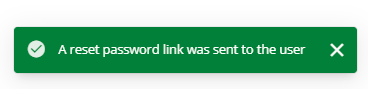
Ø You get this notification in the page.


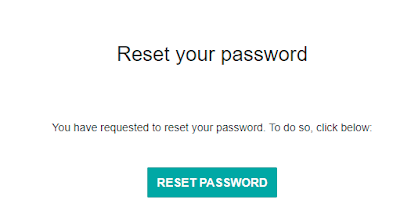
ØI’ve received this email.


ØNow, I am trying to login


ØWhen I logged in with my new user this is my end result.couldn’t access the pages after login

Then I updated the one more policy group

ØThen login again

ØYou can see my page with different themes.

Steps to follow when using a PowerShell script to modify the goals in Sitecore

I have previously utilized PowerShell for item creation, modification, deletion, and presentation details in Sitecore.   Ø Recently, I attem...